Additional author prompts
Additional author prompts allow authors to add their own instructions and information for content generation, without needing access to the content generation prompt from the project manager dashboard. More about authoring promptsMore about authoring prompts
When you add author prompts, authors will be able to provide additional details or guidance to Item Assist before generating items. These prompts can be used to define nearly any type of specification, such as style requirements or sample response options.
For example, if the prompt context is: "input details about the structure of the response options", the author could input the following into the prompt when generating items: "Options should be less than 20 words each" or "Options should be listed alphabetically".
 Additional author prompts are one type of authoring prompt (fields presented to the authors when they are generating items with Item Assist).
- Unlike metadata, additional author prompts are not tagged to the generated items. (Metadata is another type of authoring prompt configured separately from additional author prompts.)
We recommended starting out with the additional author prompts listed below. Click the links for instructions:
Add an additional author prompt
The steps below describe how to set up the additional author prompts that will be presented to authors when they are generating items with Item Assist.
|
|
 Additional author prompts are only used by Item Assist when an author inputs specific instructions into the prompt when generating items. For example, if you set up an "
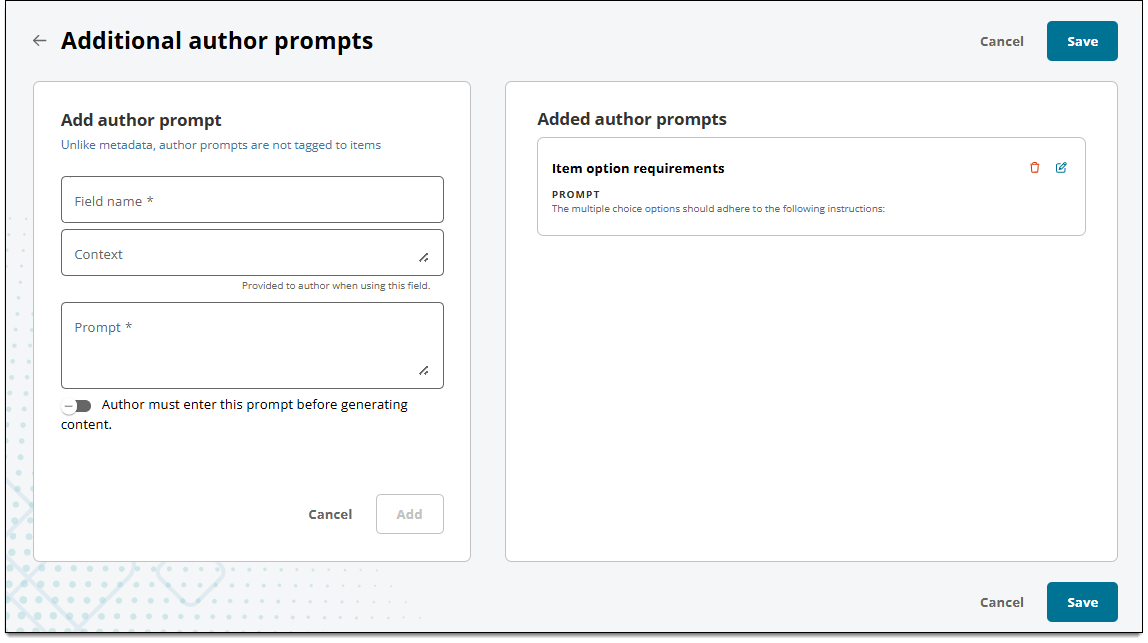
- Click Additional author prompts on the Item Assist home page.
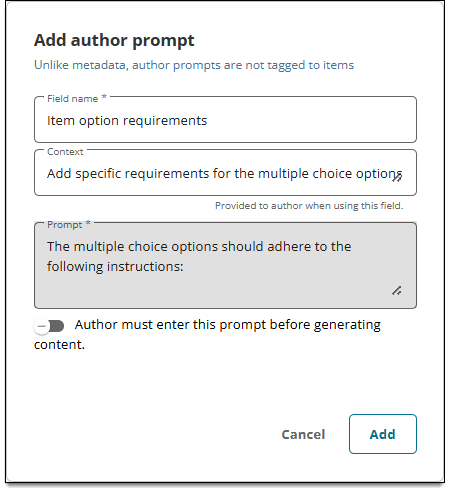
- In the Add author prompt area, input a Field Name.
- Example: "Item option requirements"
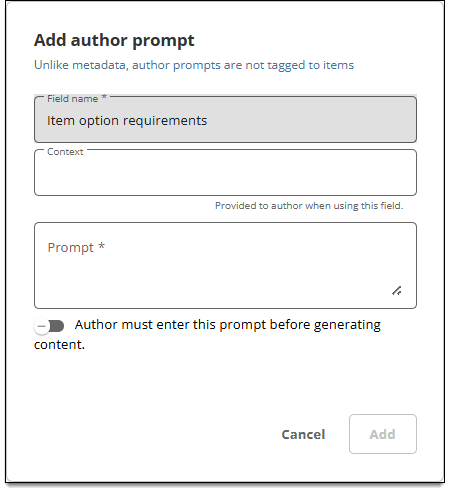
- This is the label for the author prompt that will be shown to authors when they are generating items.
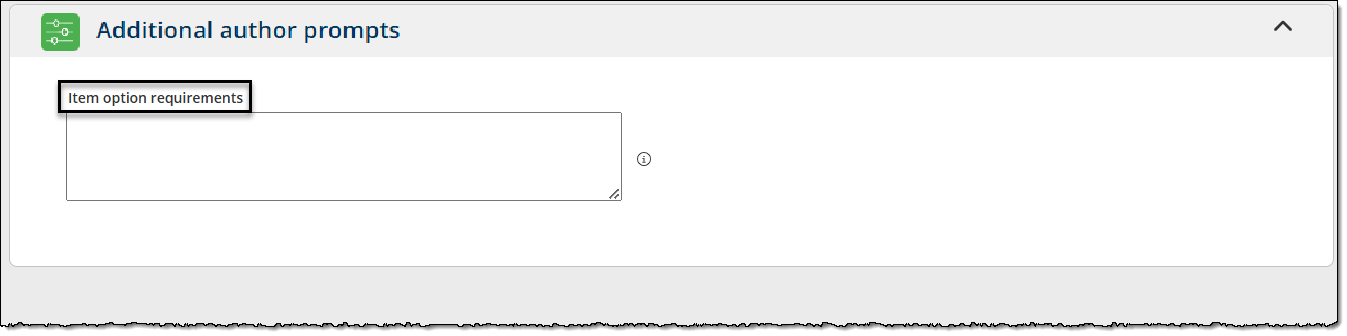
- Example: "Item option requirements"
- In the Context field, input contextual information that will be available to authors. Context is not sent to Item Assist; it is simply used to help authors understand the goal of each prompt.
- Example: "Add specific requirements for the multiple choice options."
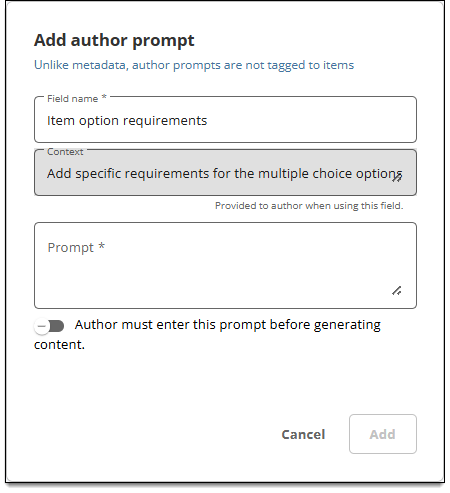
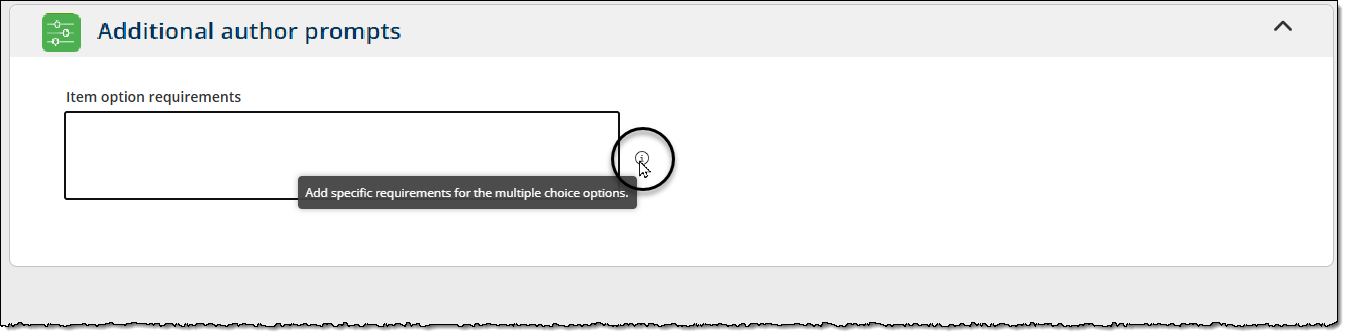
- The context you provide will also appear in the prompt when authors hover over the tooltip.
- Example: "Add specific requirements for the multiple choice options."
- In the Prompt field, input specific instructions for the prompt that will be sent to Item Assist. These are the instructions that will be used by Item Assist to generate items. (The content in this field is not visible to authors.)
- Example: "The multiple choice options should adhere to the following instructions:"
- Example: "The multiple choice options should adhere to the following instructions:"
- (Optional) Select Author must enter this prompt before generating content to require authors to specify instructions for this prompt (they cannot leave it blank).
- Click Add.
- The author prompt is added to the Added author prompts section.
- Click Save in the lower-right corner of the page.
- The author prompt is now available to authors when generating items and can also be added to the Content generation prompt.
Edit author prompts
- In the Added author prompts area, click
 for the desired prompt.
- In the Edit author prompt area, make the desired changes.
- Click Update.
- Click Save in the lower-right corner of the page.
Remove author prompts
- In the Added author prompts area, click Remove from Item Assist
 for the desired prompt.
- The author prompt is removed and will no longer be shown to authors.